Creating a sub-domain can be essential for organizing your website structure or launching a new section, like a blog, shop, or forum. If you’re using CyberPanel web hosting, setting up a sub-domain is quick and easy. In this guide, we’ll walk you through the step-by-step process to create a sub-domain in CyberPanel.
Why Use Sub-Domains?
- Site Organization: Sub-domains help manage different sections of your website (e.g., blog.yourdomain.com, shop.yourdomain.com).
- Separate Hosting Areas: You can host different web applications or platforms in each sub-domain.
- SEO Benefits: Sub-domains can improve site organization and user experience, which can positively impact SEO.
- Branding: Sub-domains provide flexibility for creating specific landing pages, regional sites, or marketing campaigns.
Step-by-Step Guide to Creating a Sub-Domain in CyberPanel
Step 1: Log in to Your CyberPanel Account
- Open your browser and enter the CyberPanel login URL (usually https://yourdomain.com:8090).
- Enter your username and password to access the dashboard.
Example Image: CyberPanel Login Page
Step 2: Navigate to the ‘Websites’ Section
Once you are logged into CyberPanel:
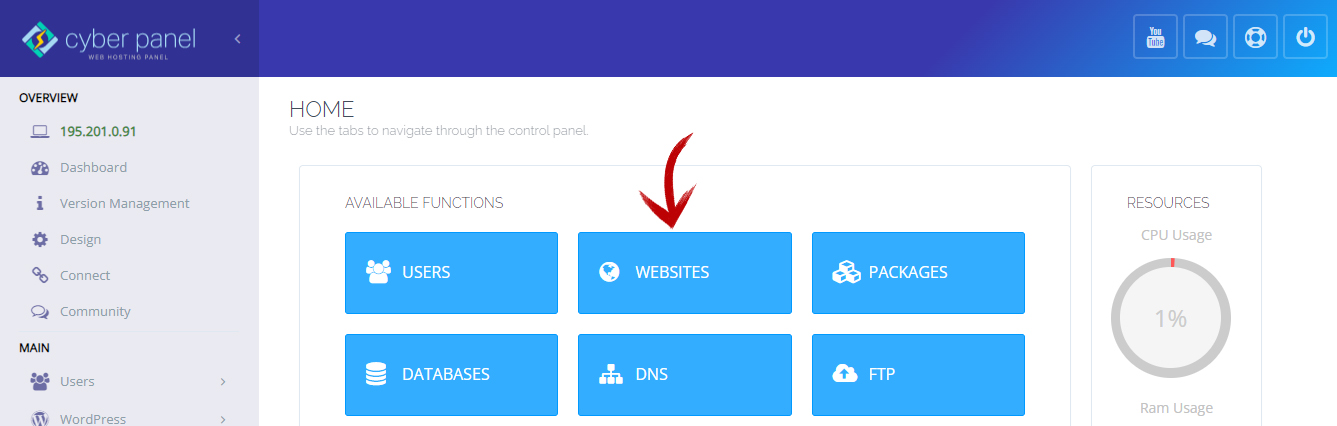
- In the left-hand menu, click on Websites.
- Then, select Create Website if you’re creating a sub-domain for a new site.
Step 3: Choose Your Main Domain
-
- From the Create Website page, select the main domain where you want the sub-domain to be added.
- This is the root domain that will appear before your sub-domain (e.g., blog.yourdomain.com).
Step 4: Add the Sub-Domain
- Under Website Name, type in the sub-domain you want to create (e.g., blog, shop, or support).
- The full URL for your sub-domain will look like blog.yourdomain.com.
Example Image: Creating Sub-Domain in CyberPanel
Step 5: Configure the Sub-Domain Options
- SSL: Check the box to issue an SSL certificate for your sub-domain. This is crucial for securing your sub-domain with HTTPS.
- PHP Version: You can select the PHP version that your sub-domain will use, depending on the requirements of your web application.
- DNS Settings: Make sure the DNS is set up correctly so that the sub-domain points to the right server.
Step 6: Complete Sub-Domain Creation
- Once you’ve filled in the details, click on Create Website. CyberPanel will set up the sub-domain for you, and it should be ready for use within minutes.
How to Access and Manage Your Sub-Domain
After creating your sub-domain, you can manage it through CyberPanel:
- Go to the Websites section again, and you’ll see the sub-domain listed alongside your main domain.
- You can upload files, install applications like WordPress, or configure databases for your sub-domain just like a regular website.
Common Issues and Troubleshooting
1. DNS Propagation Delay
After creating the sub-domain, DNS changes might take some time to propagate across the web. Wait for up to 24 hours, and clear your browser’s cache if the sub-domain isn’t showing.
2. SSL Errors
If you encounter SSL errors, make sure that the SSL certificate was issued correctly. In CyberPanel, navigate to Manage SSL under the sub-domain to reinstall or check the certificate.
3. Sub-Domain Not Loading
Verify your DNS settings to ensure that the sub-domain is correctly pointed to your server. You can check this using DNS lookup tools.
Why Choose NybbleHost for CyberPanel Web Hosting?
At NybbleHost, we provide optimized web hosting with CyberPanel, ensuring that you can manage your websites and sub-domains effortlessly. Here’s why NybbleHost is the perfect choice for your hosting needs:
- Fast Performance: Our hosting plans are powered by OpenLiteSpeed, ensuring faster load times for your main website and sub-domains.
- User-Friendly: Manage your sites with ease through the CyberPanel interface.
- 24/7 Support: Whether you’re setting up a sub-domain or dealing with technical issues, our expert support team is available around the clock.
Need Reliable Web Hosting for Your Sub-Domain?
Look no further than NybbleHost. With our fast and secure hosting solutions, managing your sub-domains has never been easier. Whether you’re launching a blog, shop, or additional site, NybbleHost offers the right tools and support to help you grow online.
👉 Explore our web hosting plans at NybbleHost today!
Conclusion
Creating a sub-domain in CyberPanel web hosting is an essential step for improving website organization and performance. With just a few clicks, you can set up a new sub-domain, secure it with SSL, and start building new content. If you’re looking for reliable hosting with easy management, NybbleHost provides everything you need for a successful online presence.