Most website owners only think about security after something goes wrong. By then, you’re dealing with a hacked website, a Google warning label, or a frantic call from a client asking why the site is redirecting to a gambling page.
A solid WordPress security checklist flips that order. It gives you a repeatable set of steps to lock down your site before an attacker finds the gap, not after.
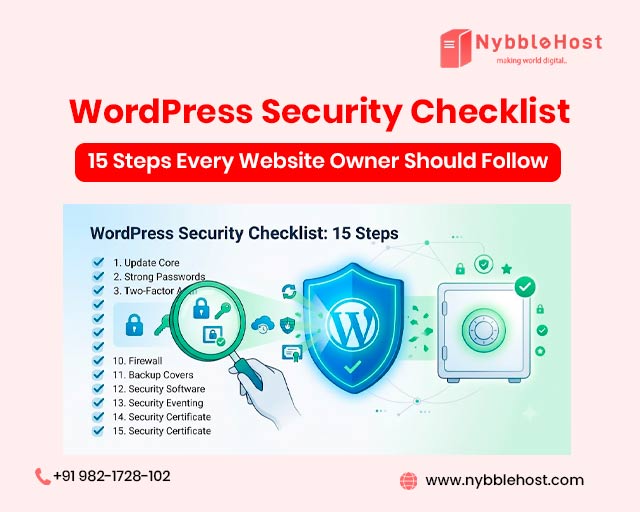
This guide breaks down 15 practical steps covering everything from login protection to server-level hardening — the same checklist we run through on client sites before calling them “launch ready.”
Why WordPress Security Deserves a Checklist Approach
WordPress runs a huge share of the web, and that popularity makes it a constant target. Attackers don’t usually target you specifically — they run automated bots scanning thousands of sites for the same handful of common weaknesses.
That’s exactly why a checklist works. Most successful attacks exploit the basics: a weak password, an outdated plugin, or a login page with no rate limiting. Fixing those closes the door on the majority of automated threats before more sophisticated ones ever come into play.
Step 1–5: Locking Down Access
1. Use Strong, Unique Passwords
Weak WordPress passwords remain one of the most common entry points for attackers. Every account — admin, editor, FTP, and database — needs a unique password that isn’t reused elsewhere.
2. Enable Two-Factor Authentication
Two-factor authentication WordPress setups add a second verification step beyond the password, usually through an authenticator app. Even if credentials are stolen, the account stays protected.
3. Limit Login Attempts
Limit login attempts to block repeated automated login tries. Without this, bots can hammer your login page thousands of times a day trying different password combinations.
4. Change the Default Login URL
The default /wp-admin and /wp-login.php paths are the first thing bots check. You can change WordPress login URL paths using a security plugin to reduce automated attack attempts significantly.
5. Set Up an Admin Panel Lockdown
Restrict who has admin-level access. Review WordPress user roles regularly and downgrade accounts that don’t need full control. Not every contributor needs the keys to the whole site.
Step 6–10: Strengthening the Core Setup
6. Keep Everything Updated
Update WordPress core, update WordPress plugins, and update WordPress themes as soon as new versions release. Most breaches trace back to a known vulnerability that was already patched but never installed.
7. Remove Unused Plugins and Themes
Every inactive plugin is still a potential entry point. Remove unused plugins and remove inactive themes rather than just deactivating them — dormant code can still be exploited.
8. Install a Web Application Firewall
A Web Application Firewall (WAF) filters malicious traffic before it ever reaches your WordPress installation. Services like Cloudflare for WordPress add this layer without slowing down legitimate visitors.
9. Disable File Editing in the Dashboard
Disable file editing in WordPress through the built-in theme and plugin editor. If an attacker gains admin access, this prevents them from injecting code directly through the dashboard.
10. Turn Off XML-RPC If You Don’t Need It
Disable XML-RPC WordPress functionality unless you specifically rely on it for remote publishing or app integrations. XML-RPC is a common target for brute force and DDoS-style attacks.
Step 11–15: Monitoring, Backup, and Recovery
11. Set Up Automatic Backups
Automatic WordPress backups stored off-server give you a clean recovery point if anything goes wrong. Store copies in at least two separate locations.
12. Add SSL and Enforce HTTPS
An SSL certificate for WordPress, paired with enforced HTTPS for WordPress, encrypts data between your site and visitors. This is also a confirmed Google ranking signal, not just a security measure.
13. Configure Security Headers
WordPress security headers like Content-Security-Policy and X-Frame-Options add browser-level protection against clickjacking and script injection attacks.
14. Monitor Activity Logs
WordPress activity logs track every login, file change, and plugin update. When something looks off, logs are usually the fastest way to trace what happened and when.
15. Run Regular Vulnerability Scans
A scheduled WordPress vulnerability scan catches issues before they become full-blown incidents. Pair this with a website malware scanner for ongoing peace of mind.
Common Mistakes Website Owners Make
- Treating security as a one-time setup. Installing a plugin once and never checking it again leaves gaps as new threats emerge.
- Ignoring file permissions. Loose file permissions WordPress settings give attackers more room to move once they’re in.
- Skipping backups until after a hack. By then, the backup itself might already be compromised.
- Using the same password across admin, hosting, and FTP. One leaked credential compromises everything at once.
- Assuming shared hosting is “good enough.” Secure WordPress hosting with isolated environments matters far more than most owners realize.
Pro Tips from Real Client Audits
Across the security audits we run for clients, the sites that get hacked repeatedly almost always share one trait: they treat updates as optional. A neglected plugin from two years ago is often the exact entry point an automated bot is scanning for.
A few habits that consistently hold up over time:
- Schedule updates weekly instead of waiting for a “someday” cleanup
- Review WordPress access control settings every quarter, not just at launch
- Pair a firewall with DDoS protection for WordPress rather than relying on either alone
- Keep a documented WordPress recovery plan so no one is improvising during an actual incident
Future Trends in WordPress Security
Automated attacks are getting faster. Bots now scan for newly disclosed vulnerabilities within hours of public release, which means the gap between “patch available” and “patch required” keeps shrinking.
Security plugins are shifting toward behavior-based detection instead of static signature matching, catching unusual activity even when the exact threat hasn’t been catalogued yet. Website uptime monitoring and website security monitoring tools are increasingly bundled together, giving site owners one dashboard instead of five separate tools to check.
Managing WordPress security alongside everything else on your plate isn’t easy, and that’s exactly where Nybble Host comes in. As a WordPress hosting plan and digital marketing partner working with businesses since 2012, we handle the technical side — secure infrastructure, monitoring, and maintenance — so your website stays protected without becoming a full-time job. Reach out if you’d like a quick review of where your site currently stands.
Conclusion
Securing a WordPress site isn’t about one big fix — it’s about consistently covering the basics: strong access controls, regular updates, reliable backups, and ongoing monitoring.
Run through this WordPress security checklist every quarter, and you’ll close the door on the vast majority of automated attacks before they ever get close to your site. WordPress security hardening works best as routine maintenance, not emergency response.
Keeping a WordPress site secure takes ongoing attention, and that’s exactly where an experienced team makes the difference. We’ve been managing website security, hosting, and performance projects since 2012, helping businesses stay protected without slowing down their site or their team. If you’d like a professional review of where your current setup stands, we’re happy to take a look.
Frequently Asked Questions
- What is the most important step in WordPress security? Keeping WordPress core, plugins, and themes updated prevents the largest share of attacks, since most breaches exploit known, already-patched vulnerabilities.
- How often should I run a WordPress security audit? A WordPress security audit every three months is a reasonable baseline, with lighter vulnerability scans running weekly through an automated plugin.
- Do I need a security plugin if I already have a firewall? Yes. A firewall filters traffic before it reaches your site, while a security plugin monitors what happens inside WordPress itself — file changes, login attempts, and user activity.
- Is shared hosting safe for WordPress? It can be, provided the host offers isolated environments and active malware scanning. For business-critical sites, secure WordPress hosting with dedicated resources is generally worth the upgrade.
- What should I do first if I think my site was hacked? Take the site offline, back up the current state for evidence, and follow a structured hacked website recovery process rather than deleting files at random.